Brylka – TooDee – PanicPost

Blog

  • Playing around with beeble.ai (SDR to HDR)

    This page is best viewed on HDR-capable displays with browsers like Safari or Chrome. Some browsers/systems cannot display the HDR MP4-stills images.

    On the left: SDR Source // on the right: SDR-to-HDR with beeble.ai

    Recently I saw some posts on LinkedIn about a tool that up-converts SDR footage to HDR using AI. I got in touch with the founder of beeble.ai, and he pointed me to an HDR-encoded demo video on YouTube.

    (https://youtu.be/oUmxX8_MOxA?si=XRYAv4c3q-O3pnnp).

    For my taste, the SDR footage in the videos often looks too flat, and the converted HDR footage looks bright, but overall too dark. So I wanted to test the tool with some of my own footage.

    I rediscovered these two HDR test clips I created in 2021 using bracketed photos and graded in FCPX.  Back then, my workflow was as follows:

    • Merge the bracketed photos with Photomatix Pro to linear ProPhoto EXR files (not a recommended workflow anymore).
    • Export an ARRI LogC ProRes 444 file from Nuke.
    • Grade the footage in FCPX in HDR mode (linear Rec.2020 PQ)
      • At that time, on a 500 nits iMac 27″ and check on an iPad Pro XDR at 1000 nits.

    Here is the idea for a test that came to my mind:

    • Converting the HDR grade to SDR in FCPX with HDRTools.
    • Export a high-quality H.264 file from each clip and use that as the source for beeble.ai.
    • Set a highlight threshold in beeble.ai and process the two scenes to generate the EXR AP-O output.
    • In Resolve, create a side-by-side comparison of the original HDR, converted SDR, and upconverted HDR footage.

    Overall, I am not really interested in AI generating new content in clipped areas of an image. I find it much more intriguing to observe how the AI determines which pixels receive the highest values in the newly generated HDR content derived from the SDR source.

    I’ve seen every demo footage processed by beeble.ai so far, and it’s always ended up quite dark, even darker than the original.  To fix this, the EXR files I received from beeble.ai have an exposure compensation of plus one stop.

    I created two comparison sheets in Resolve that show two points of view. In both contact sheets, the original HDR footage is on the left, the SDR content is in the middle, and the beeble.ai SDR to HDR conversion is on the right.

    For the initial contact sheet, I created a Resolve project with a PQ output in a non-RCM environment. This setup highlights the significant contrast between the SDR and HDR content.

    • The HDR images on the left looks like intended
    • In the middle, the SDR images are inside a PQ container that clips at 100 nits. Naturally, it appears less vibrant than the HDR on the left.
    • The HDR result from beeble.ai on the right reveals more detail in the headlights but suffers from a lack of overall light intensity.  This is particularly noticeable in the light reflection on the sidewalk from another car behind the Prius.
    • In the overall appearance, I find the middle and right results closer to each other; only the left HDR source sticks out (as it hopefully should)

    Another approach is to examine the results in a Resolve ACES project using an HDR ODT. The SDR content appears remarkably similar to both the HDR stills on the left and right.

    • The HDR image on the left looks like intended.
    • In the middle, the SDR image version employs the inverse Display Rec.709 IDT.  This results in values reaching around 16, which allows for a surprisingly good match to the HDR look on the left. However, the SDR material appears less bright and slightly less colourful compared to the HDR master.
    • On the right is again the beeble.ai result. The main differences are the detail in the headlights (which was generated) and the lack of brightness in the light reflection behind the Prius.

    Finally, here are both contact sheets as HDR-encoded clips on YouTube.


  • First projects of 2026

    A Tribute To Dedication | The New BMW 7.

    BMW M Concept Neue Klasse.

  • Big Blender 5.0 color management changes

    Blender 5.0 has been out for a while now, and I think this is a good time to reflect on some older posts and articles that are partly obsolete now.

    I started with post 1.3. Using OpenColorIO in Blender in February of 2018, trying to understand how to achieve a matching viewer output between Blender and Nuke.

    I continued the series of posts in August of 2019 with 1.4. Blender & ACES 1.2 using the available OCIO v1 configs available at the time. The next step was to describe the workflow to use external OCIO v2 configs in March of 2022 in the blog post 1.4.1. Blender 4.3 & OCIO v2-release.

    The latest articles in the series were 1.5.1. Blender 4.0 & AgX and 1.5.2. Blender 4.5 & ACES 2.0, in which I tested the ACES 2.0 OCIO config that was supported very early with Blender 4.5 in comparison to other DCC applications.

    These articles can still be useful even with the big release of Blender 5.0, because there are more interesting OCIO configs to try out and use in productions that are sadly not included in Blender by default. A list of some of the OCIO configs that I came across, I compiled in the blog post New OCIO configs available in June of 2025.


    Now it’s 2026 and Blender 5.0.1 is out with native support for Standard (inverse EOTFs), the Khronos PBR Natural (basically “Standard” with a softclip to 1.0), the outdated Blender Filmic view transform, and the next generation AgX view transform. Finally, there is also now native support for ACES 1.3 and ACES 2.0 view transforms.

    One of the many new features of Blender 5.0 is the ability to see the standard working colorspace “Lineard Rec.709” and the ability to change the working colorspace to Linear Rec.2020 and ACEScg.

    Plus, Blender can convert RGB values for lights and shaders from one working color space to the other.

    This new feature fits nicely with the new series of articles Numbers and meaning, and here is the first article for Blender 5.0:

    4.3. Blender 5 – quickly moving out of gamut

  • Switching to the latest WordPress theme

    WordPress 6.9 is out and the latest default WordPress theme “Twenty Twente-Five” looks good.

  • Summer projects 2025:

    Here are some projects I worked on this summer.

    Mountain Dew Baja Blast – just a label replacement for a changed logo design [comp in Nuke] at “The Marmelade”


    Bosch – helped out just for a week with some scene transitions [comp in Nuke] at “Serviceplan Make Munich”


    Pfister – retouch and refinement work on the first full AI projects I worked on [comp in Nuke] at “Infected”


    VW Commercial Vehicles campaign AD – conform and online in flame & additional comp work in Nuke at “Infected”

  • HDR “images” on the web

    Finally, an HDR image is directly in the web browser. It is not an image, but a so-called still-frame video. Whatever works to get the screen bright 🙂

    The footage of my side project during the pandemic in February of 2021 got a re-work.

    • All the 7-bracket Canon 7D photos were processed again, this time to ACEScg EXRs files directly.
    • The merged files were “graded” on my MBP in HDR using the new ACES 2.0 image formation pipeline.
    • After the grading was done, the image formation pipeline was switched to ACES 1.3 (with RGC), OpenDRT, and JP_2499 via DCTL in Resolve 20 Studio without any trim pass.
    • A compilation of the best images can be watched in UHD-HDR on YouTube.
    • The intro “still” image is also a video file. But it works…

    HDR still image

    This is a .mp4 file set to “Autoplay”, hide the “Playback controls” and set to “Play inline”

    …there is a good chance you see only an empty space. I tested this page on an iPhone Pro, iPad, and MacBookPro. They all show the HDR “image”.
    I also could test this page on a basic Android mobile phone. Chrome does not support these still “video” files it seems. At least not on this specific device.

    Link to YouTube clip and Social Media links with vertical video versions.

    For the Social Media format exports I used FCPX.

  • New OCIO configs available

    New OCIO configs arrived in the last months. I am happy to see more and more options available to try out and test for productions.

    Update: Added “DAS-UBER-OCIO-Config” from Chris Brejon

    ACES 1.3 — OpenColorIO-Config-ACES 2.1.0 – 2.2.0 for ACES 1.3


    ACES 2.0 — OpenColorIO-Config-ACES 3.0.0 for ACES 2.0

    At the moment (05/2025) I am only aware that Autodesk Flame 2026, Fusion 20 (public beta), and Blender 4.4 can read this OCIO config. Sadly there is a bug in Blender 4.4.x that makes the OCIOv2 configs for ACES 1.3 and ACES 2.0 unusable. The bug is reported and fixed in the Blender 4.5 alpha version, but it seems this bug won’t get fixed in the Blender 4.4.x releases.

    Default working colorspace: ACEScg

    • Other available linear working colorspaces
      • linear-sRGB/Rec.709
      • linear-P3-D65
      • linear-Rec.2020

    OpenDRT v1.1.0 — Github jedypod / open-display-transform

    Default working colorspace: Filmlight – linear-E-Gamut 2 (this is version 2)

    • Other available linear working colorspaces
      • linear-sRGB/Rec.709
      • linear-P3-D65
      • linear-Rec.2020
      • ACEScg
      • Filmlight – linear-E-Gamut (this is version 1)
      • DaVinci WideGamut

    Thanks to Jed Smith for this new release and all the work and effort he is putting into this project.


    Filmlight T-CAMv3 — Truelight Colour Spaces OCIO config

    Default working colorspace: Filmlight – linear-E-Gamut 2 (this is version 2)

    • Other available linear working colorspaces
      • linear-sRGB/Rec.709
      • linear-Rec.2020
      • ACEScg

    Replayboys — OCIO Configuration by Finn Jäger

    Default working colorspace: ACEScg

    • Other available linear working colorspaces
      • linear-sRGB/Rec.709
      • linear-P3-D65
      • linear-Rec.2020

    A collection of ARRI, ACES 1 & 2 (LUT-bakes), Khronos Neutral and Replayboys Filmic view transforms


    AgX — there are several places where you can find different versions of AgX and even a Python generator for your version of the config.

    I prefer to use an OCIO config that has more options and I found the easiest way to do so is to use the OCIO config that ships with Blender.

    Default working colorspace: linear-sRGB/Rec.709

    • Other available linear working colorspaces
      • linear-sRGB/Rec.709

    The more linear working color spaces are available in each OCIO config, the easier it is to try out different image formation approaches (view transforms).


    Chris Brejon — DAS-UBER-OCIO-Config

     A minimal OCIO config with several image formations for full CG projects. 

    Default working colorspace: linear-Rec.709

    • Other available linear working colorspaces
      • linear-P3-D65
      • linear-Rec.2020
      • linear-xyz
    • featured image formation pipelines
      • OpenDRT 1.0
      • ACES 1.0 / ACES 2.0 (LUT bakes)
      • JP2499
      • RED IPP2 / IPP2 Look
      • Sony Venice – High Contrast
      • Display Encoding (inv. EOTF “gamma 2.4”)
      • Display Log (Cineon Log)
  • Blender 4.5 & ACES 2.0

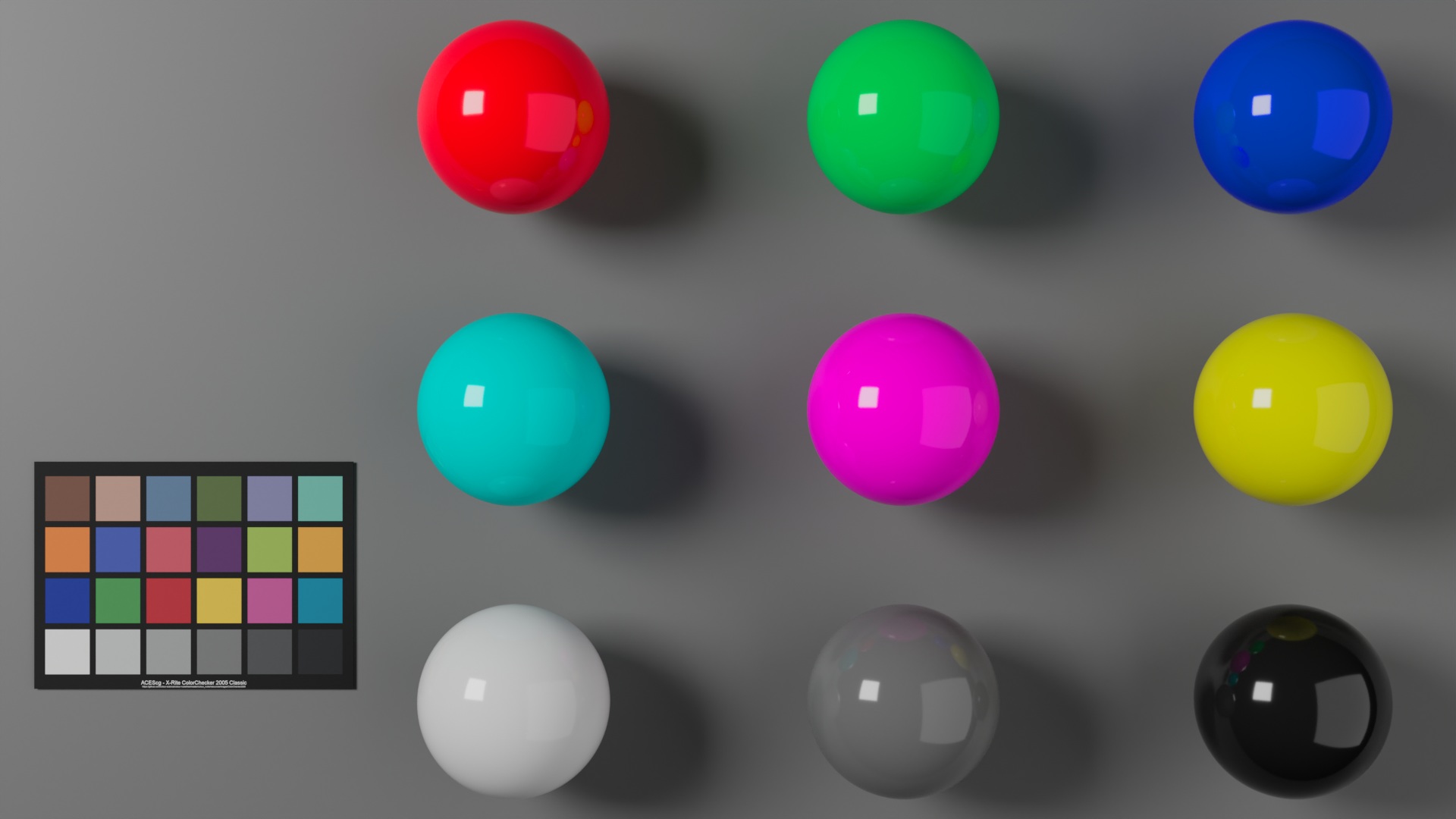
    RGB – CMY – GREY – BALLS in ACES 2.0 (Scene exposure 0.667)

    Blender 4.5 is around the corner (Blender 4.4.x has a serious bug with OCIOv2 configs on MacOS – at least for me) and the new ACES 2.0 OCIOv2 config was recently released. So it’s time for an updated little setup guide on how to start work with the new OCIO config in Blender.

    Head over to 1.5.2. Blender 4.5 & ACES 2.0 to check it out.

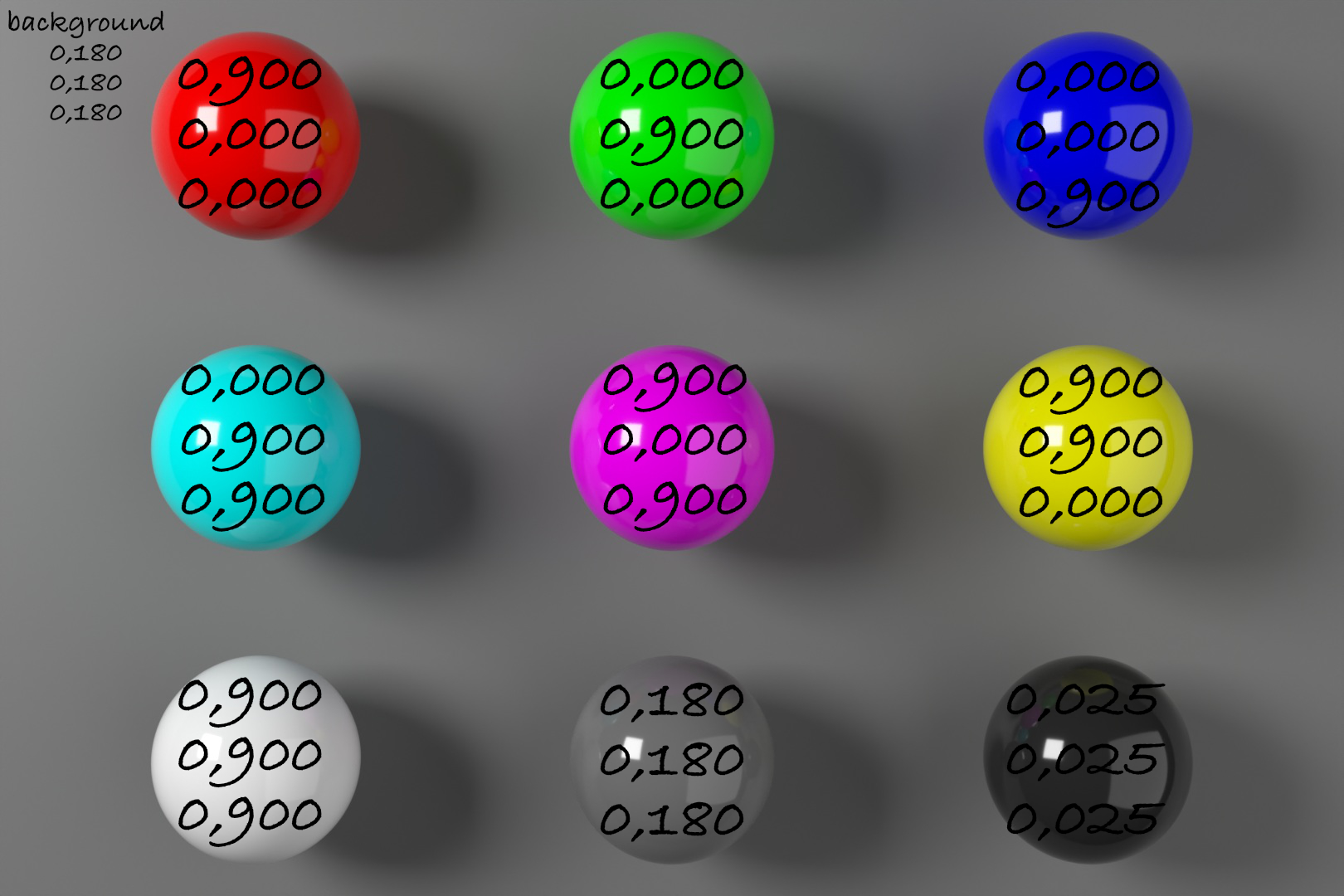
    And I wrote a new article in the section “Numbers and meaning” called 4.2. 0,900 or 90% of what? to explore the new ACES 2.0 OCIO config further.

  • Projects: 2024

    Here is a collection of some of the projects I worked on in 2024. For this selection, I found links to the films. The rest of the most important projects for 2024 can be found in the recent projects section.

    Audi

    VW

  • OpenDRT & OCIO

    A “new” display rendering transform is available

    Actually OpenDRT is not that new. What is new is that it is available now as an OCIO config thanks to Chris Brejon. Before it was only available to me as a nuke node that was developed by Jed Smith.

    Image by Chris Brejon

    The OCIO config can be downloaded here:

    https://github.com/chrisbrejon/OpenDRT-OCIO-Config/tree/main?tab=readme-ov-file

    There you can find the OCIO config with some explanations and a link to Jed’s GitHub repo as well.

    Thanks to Chris and Jed for releasing their work.